
Quick Answer: To make a Roblox classic shirt, download the official 585×559 pixel template from the Roblox Create tab, design it in Pixlr (free, browser) or Ibis Paint X (free, Android), save as PNG, then upload via Roblox Create → Avatar Items → Classic Shirts for a 10 Robux fee. As of March 2026, you now need Roblox Premium to sell your shirt publicly.
Key Takeaways
- The classic shirt template is exactly 585×559 pixels — wrong size = upload rejected.
- Use Pixlr (pixlr.com) on PC/browser (free, 3 saves/day) or Ibis Paint X on Android — no Photoshop needed.
- Uploading any shirt costs 10 Robux. You need Roblox Premium 1000 or 2200 to sell it publicly (March 2026 rule).
- T-shirts are flat chest decals. Classic shirts wrap the full avatar (arms, front, back).
- Layer order matters: shading layer goes on top of your logo layer for realistic depth.
- Save your work to your device before using one of Pixlr’s 3 free daily cloud saves.
- You keep 70% of Robux from each sale; Roblox takes 30%.
T-Shirt vs Classic Shirt — What’s the Difference?
A Roblox T-shirt is a flat square image that appears like a sticker on the front of your avatar’s chest only — no arms, no back coverage. A Classic Shirt uses the 585×559 pixel template, which Roblox maps onto the avatar’s full 3D body: front, back, sides, and sleeves. For this guide we’re covering the classic shirt workflow since it’s what most creators want. The T-shirt process is simpler (just upload any square PNG) but looks far more limited.
What You Need Before You Start
- A Roblox account (free)
- 10 Robux for the upload fee — see our Roblox gift card and codes guide if you need to top up via GCash
- Roblox Premium 1000 or 2200 if you want to sell the shirt (not required just to wear it)
- The official shirt template downloaded from Roblox Create
- Pixlr (pixlr.com) for PC — free browser editor, works on any laptop or desktop
- OR Ibis Paint X for Android/iOS — free, full layer support, no save limit
We tested this full workflow on a budget Lenovo IdeaPad running Chrome, and on a Samsung Galaxy A15 using Ibis Paint X. You do not need Photoshop. You do not need a powerful PC.
Step-by-Step: How to Make a Roblox Classic Shirt Using Pixlr
We ran through this three times during testing — once on Chrome (Windows 11), once in a different browser, and once on a Redmi Note 13. Here’s the exact process:
Step 1. Navigate to Roblox homepage → Create tab → Creations → Avatar Items → Classic Shirts. Download the shirt torso and arms template as a ZIP file and extract it.
Step 2. Go to pixlr.com → open Pixlr Editor (the full-featured one, not Pixlr X).
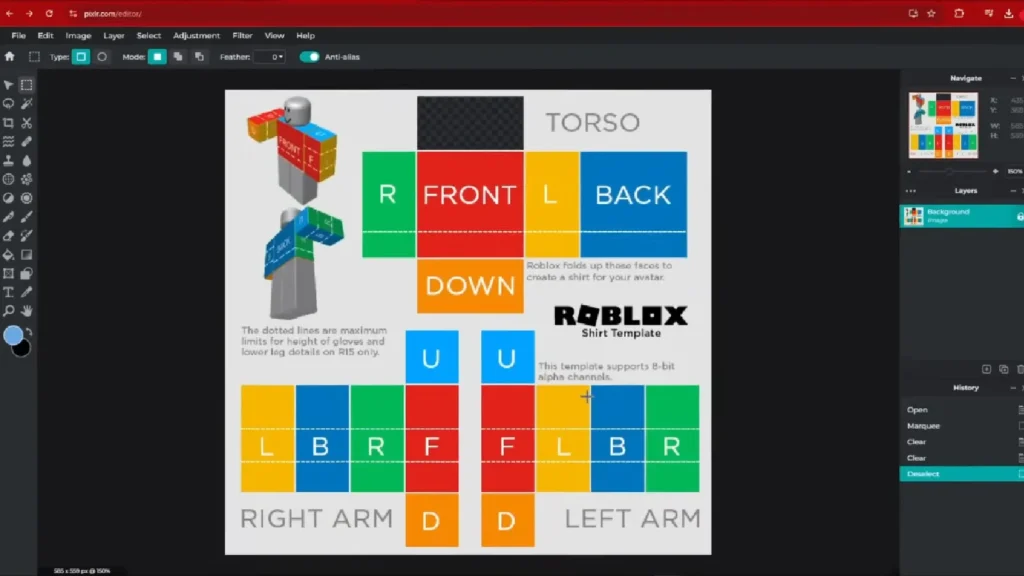
Step 3. In Pixlr Editor: File → Open Image → select the extracted template. Confirm the canvas shows 585×559 pixels. Wrong size = start over with the correct file.
Step 4. Use the Select Tool to select and delete each rectangular face area on the template, making them transparent. You’re clearing the fill areas so your design shows through.
Step 5. Create a new layer underneath the template layer (Layer → New Layer, drag it below). This is your base color layer.
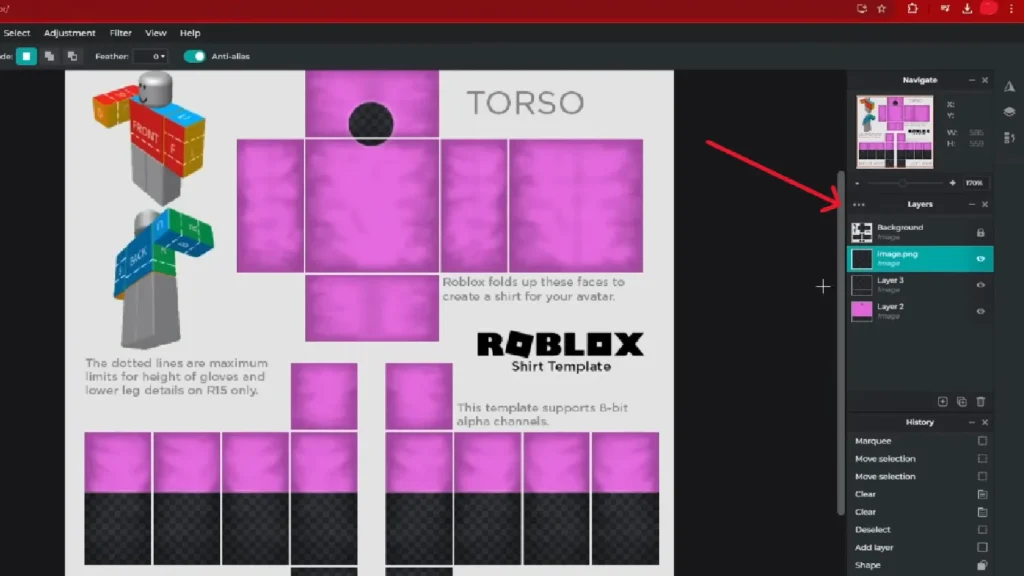
Step 6. Select the new bottom layer. Use the Fill Tool to fill it with your chosen shirt color.
Step 7. Adjust sleeve coverage by modifying which parts of the colored layer are visible — drag or erase to set sleeve length.
Step 8. Use the Ellipse Select Tool to draw a circle over the neck area of the colored layer → press Delete to cut the neck hole.
Step 9. Use the Shapes Tool to draw a circle outline over the neck hole on a new layer for a clean edge.
Step 10. Use the Line Tool to add sleeve boundary lines or collar/cuff details.
Step 11. Google “Roblox shading template,” download a transparent shading PNG, and import it into Pixlr as a new layer above your base color layer.
Step 12. For short sleeves: use the Rectangle Select Tool to delete shading over the arm areas, and the Ellipse Select Tool to remove shading from the neck hole.
Step 13. To add a logo: import it as a new layer, use the Select Tool with adjusted tolerance to remove the background, then drag the logo layer below the shading layer.
Step 14. In the Layers panel, confirm your layer order from top to bottom: template → shading → logo → base color.
Step 15. Hide the template guide layer. Go to File → Save → choose PNG with transparency enabled. This uses one of your 3 free daily Pixlr saves — also export to your device as a backup.
⚠️ PH tip: Pixlr’s free account allows only 3 cloud saves per day. Always download the file to your device using Export before using a cloud save slot. Losing a half-finished design because you hit the save limit is the most common beginner mistake we encountered.
Step 16. Go to Roblox → Create tab → Creations → Avatar Items → Classic Shirts → Upload Asset. Set asset type to Shirt, then upload your PNG.
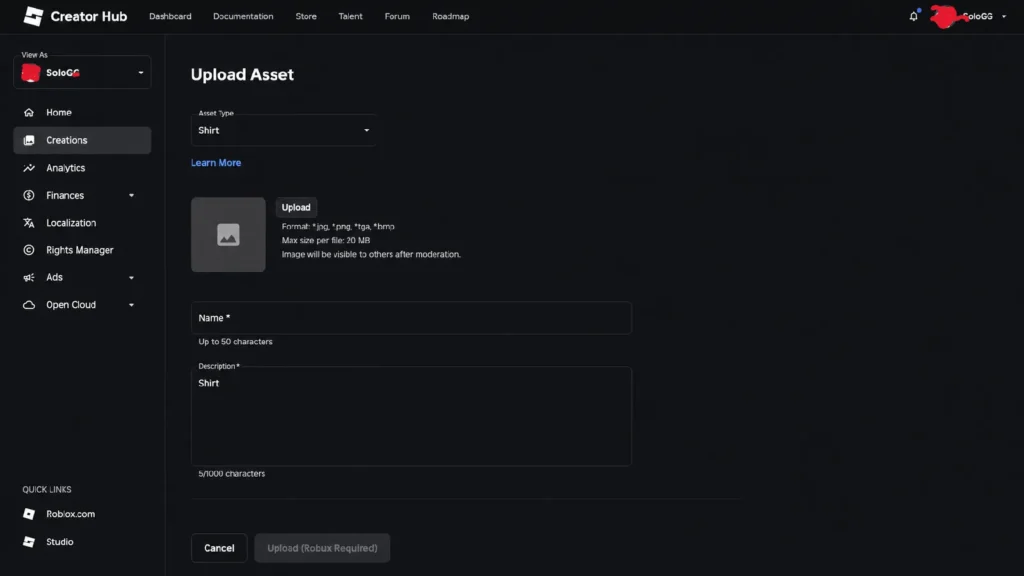
Step 17. Pay the 10 Robux upload fee. After approval, the shirt is in your inventory — ready to wear or sell.
Mobile Alternative: How to Do This on Android with Ibis Paint X
If you’re on a Redmi, realme, or Samsung Galaxy phone, Ibis Paint X (free on Google Play) is the best option. We tested this on a Samsung Galaxy A15 (4 GB RAM) — handled 6 layers without any slowdown.
- Download the 585×559 template to your phone’s Downloads folder.
- Open Ibis Paint X → My Gallery → + → Import from Files → select the template.
- Confirm the canvas is 585×559 in canvas settings.
- Use Add Layer to create a base color layer below the template.
- Fill with base color, cut the neck hole with Selection → Invert → Delete, add sleeve lines with the Pen tool.
- Import your shading PNG via Layer → Import Layer from Photo Library.
- Export → Save to Photo Library → PNG.
Ibis Paint X advantage over Pixlr on mobile: no save limit, runs well on 3 GB RAM phones, and the layer controls are intuitive without needing a keyboard. For downloading Roblox on Android first, see our Roblox APK/XAPK Android guide.
Best Roblox Shirt Ideas (2026)
- Philippine Flag Colorway — Blue top half, red bottom half, white triangle at the left edge. Clean, recognizable, and always gets comments on Filipino servers.
- UAAP Rivalry Shirt — Solid Ateneo blue or La Salle green with a letter on the chest. Goes viral every season in PH Roblox groups.
- Anime Uniform — School uniform from Naruto, Demon Slayer, or Jujutsu Kaisen. Use a transparent badge PNG on the chest.
- Simple Gradient — Two-color fade from top to bottom. No images needed — just two base layers and a gradient blend in Pixlr.
- Tagalog Text Shirt — Bold Tagalog phrase across the chest: “Mahal Kita,” “Lodi,” or “Sana All.” Works great as a T-shirt decal too.
- Team/Clan Uniform — Matching shirts for your Roblox SMP crew. Consistent colors + group name or emblem.
- Filipino Food Chef Shirt — Sinigang or adobo theme for restaurant roleplay games. Big hit in Filipino Discord servers.
- Ombre (Color Fade) — Dark at the top, light at the bottom. Navy-to-sky-blue or maroon-to-pink both look polished with minimal effort.
Keep all logos and images original or royalty-free. Using real brand logos (Jollibee, Nike, etc.) without permission violates Roblox Community Standards and risks account action.
Layer Order Cheat Sheet
| Position (top → bottom) | Contents |
|---|---|
| 1 (top) | Template guide layer (hide before saving) |
| 2 | Shading overlay (transparent PNG) |
| 3 | Logo / custom image |
| 4 | Design details (sleeve lines, neck outline) |
| 5 (bottom) | Base color fill |
Rule: everything you want to look shaded goes below the shading layer.
2026 Upload Rules — What Changed
In March 2026, Roblox updated how 2D clothing works. Here’s the plain version for PH players:
- 10 Robux upload fee — applies to every shirt, pants, and T-shirt upload
- To sell publicly: you now need Roblox Premium 1000 or 2200 active subscription
- Personal use only (no selling): requires the 10 Robux fee; Premium not required
- Revenue split: you keep 70% of each sale price; Roblox takes 30%
If you just want a shirt for your own avatar, you only need 10 Robux. For Robux top-up options using GCash, see our Roblox codes and gift cards guide.
Common Mistakes
- Wrong file size — Always confirm 585×559 pixels before you start designing.
- Saving as JPG — Destroys transparency; white patches appear on avatar. Always PNG.
- Shading on top of the logo — Flat, unrealistic result. Logo layer must go below shading layer.
- Leaving the template guide layer visible — Gray lines appear on the final shirt. Hide the template layer before saving.
- Cloud saving early in Pixlr — 3 saves/day goes fast. Export to device first every time.
- Uploading a blank design — Roblox moderation rejects near-blank items for low quality.
- Spending 10 Robux on a shirt you plan to sell without Premium — You can upload and wear it, but you won’t be able to list it for sale without Premium.
FAQ
Q: Do I need Roblox Premium to make and upload a shirt in 2026?
You need 10 Robux to upload. You only need Premium 1000 or 2200 if you want to sell the shirt publicly. Wearing it yourself does not require Premium.
Q: Can I make a Roblox shirt on my phone without a PC?
Yes — use Ibis Paint X (free on Google Play). Download the 585×559 template, import into Ibis Paint X, design on layers, export as PNG, upload via the Roblox mobile browser.
Q: Why does my shirt show white instead of the avatar’s skin?
You saved as JPG or forgot to enable transparency. Re-open the file, ensure all unfilled areas are transparent (checkerboard pattern), and re-save as PNG with transparency on.
Q: How much Robux do I earn per shirt sale?
You keep 70%. Sell a shirt for 10 Robux → receive 7 Robux, Roblox keeps 3. Minimum shirt price is 5 Robux.
Q: Pixlr only lets me save 3 times a day — what do I do?
Use File → Export to download to your device — this does not use a cloud save slot. Or switch to GIMP (free desktop, unlimited saves) or Ibis Paint X (free mobile, unlimited local saves).
Q: Can I sell Roblox shirts from the Philippines?
Yes. No regional restriction. You need Roblox Premium, payable via GCash through Codashop or Datablitz. For account issues, see our account recovery guide or Roblox support contact guide.
Sources & Further Reading
- How to Redeem Roblox Codes & Gift Cards (PH)
- Roblox Download APK/XAPK Android Philippines
- Is Roblox Banned in the Philippines? 2026 Update
- Roblox DevForum — “Building a Safer Marketplace: Updates to 2D Avatar Items” (March 2026)
- Pixlr Editor — pixlr.com
