
How to download Roblox on PC in 2026 is easier than most beginners expect — and if you’re in the Philippines dealing with slow internet or an old laptop, there’s a method here that works for you too. This guide covers three installation methods, low-spec laptop settings, slow internet download tips for Globe and Smart users, and fixes for the most common problems Filipino players run into.
Quick Summary Box
Before you start:
- Roblox is free — always download from roblox.com or the Microsoft Store only
- Minimum RAM: 1 GB (2 GB recommended for smooth play)
- Download size: approximately 1–4 GB
- Slow internet? Use the Microsoft Store method — handles dropped connections better
- Old laptop? Try BlueStacks — the Android version can run better on weak hardware
- Never download Roblox from Facebook posts, Telegram groups, or unofficial sites
Key Takeaways
- Roblox runs on almost any Windows laptop — even 10-year-old hardware meets minimum specs
- 3 installation methods: official website, Microsoft Store, and BlueStacks (Android emulator)
- Filipino players on slow internet should download at night or use the Microsoft Store method
- After installing, set graphics to Level 1–2 if your laptop lags
- The BlueStacks + XAPK method is a fallback for very old devices or when official installs fail
- Always close Chrome and heavy apps before launching Roblox on a 2 GB RAM laptop
Can My PC or Laptop Run Roblox? (2026 Minimum Specs)
| Spec | Minimum | Recommended |
|---|---|---|
| OS | Windows 7 or newer | Windows 10 or 11 |
| Processor | Intel Celeron D 430 (2006 era) | Intel Core i5 or equivalent |
| RAM | 1 GB | 4 GB |
| Graphics | AMD Radeon 9500 / DirectX 10 | Dedicated GPU |
| Storage | 1 GB free | 4 GB free |
If your laptop runs Windows 10 or 11 and has at least 2 GB of RAM, you can play Roblox. Hardware is almost never the issue for Filipino players — the real bottleneck is usually the internet connection during download or background apps eating RAM after install.
Method 1: Download Roblox from the Official Website
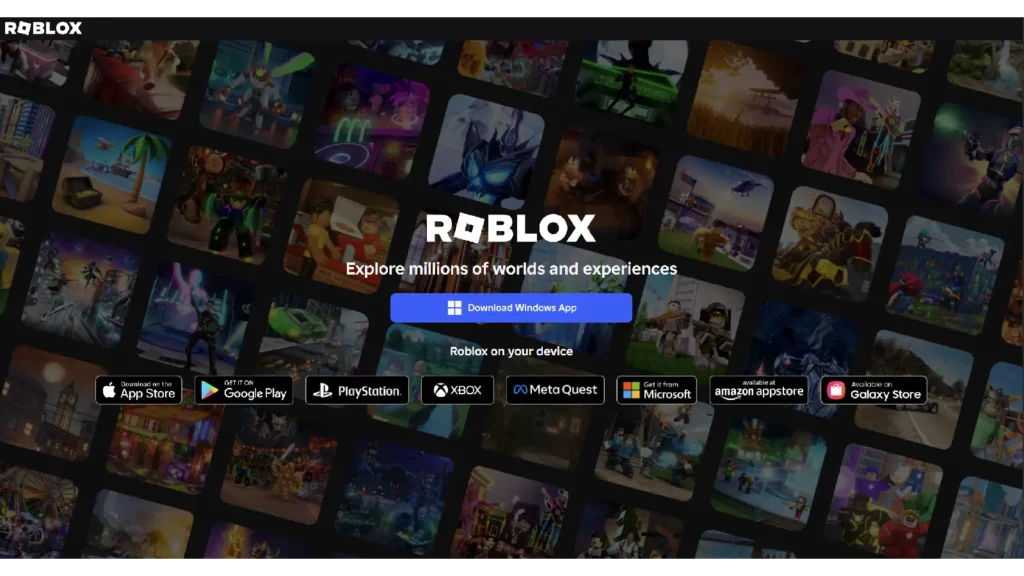
- Open Chrome, Edge, or Firefox → go to roblox.com
- Log in or create a free account
- Click any game and press the green Play button
- Click Download and Install Roblox when prompted
- Open your Downloads folder → run RobloxPlayerLauncher.exe
- Click Yes when Windows asks for permission — this is normal
- Roblox installs automatically and opens when done
Slow internet tip: If the download stalls, press Ctrl+J in Chrome → click Resume. If it keeps failing, use Method 2 instead.
Method 2: Download Roblox via Microsoft Store (Best for Slow Internet in the Philippines)
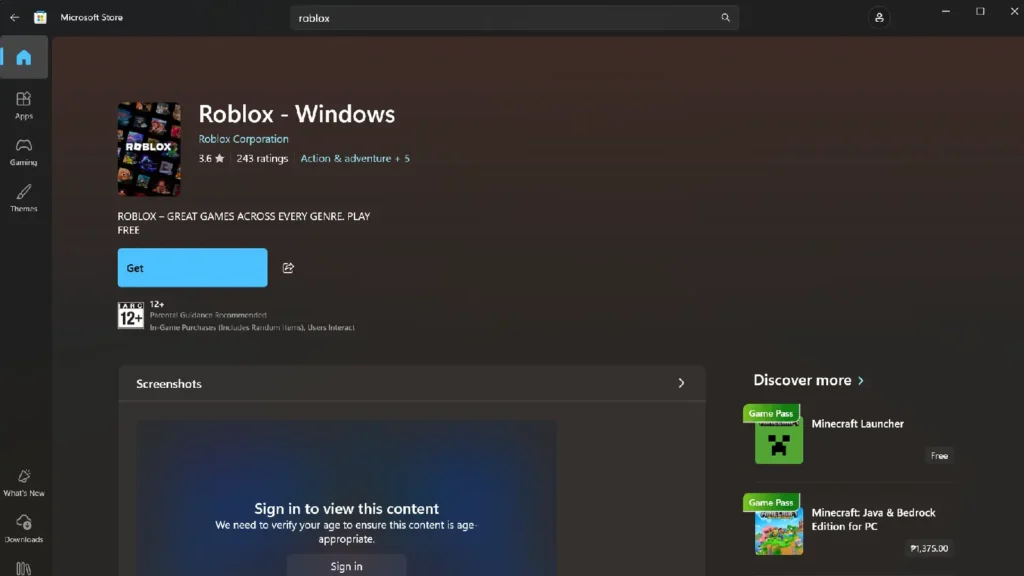
The Microsoft Store auto-resumes interrupted downloads — better than browser downloads on unstable Globe DSL or Smart mobile data.
- Press the Windows key → open Microsoft Store
- Search Roblox → click Get (free)
- Download completes automatically; find Roblox in your Start menu
Fix for “You already own this” error: Three dots (top-right) → My Library → find Roblox → Install
Method 3: How to Install Roblox on an Old Laptop Using BlueStacks
⚠️ This is a fallback method — always try the official roblox.com or Microsoft Store install first. The XAPK option is community-accepted but not officially supported by Roblox Corporation.
BlueStacks runs the Android version of Roblox on Windows. On older hardware, this can perform better than the native PC client — but requires your laptop to support hardware virtualization. Most Intel Core i3/i5 laptops from 2012 onward support this; very old Celeron models may not. Check bluestacks.com if the install fails.
BlueStacks requirements: Windows 7+, 2 GB RAM, 5 GB free storage
Part A: Install BlueStacks
- Go to bluestacks.com → Download (requires a minimum of 5GB free disk space for installation. However, in practical use, it often takes up 10GB to 30GB+ because the application size grows based on installed games, apps, and stored data.)
- Run installer and complete setup
- Sign in with a Google account
Part B: Install Roblox in BlueStacks
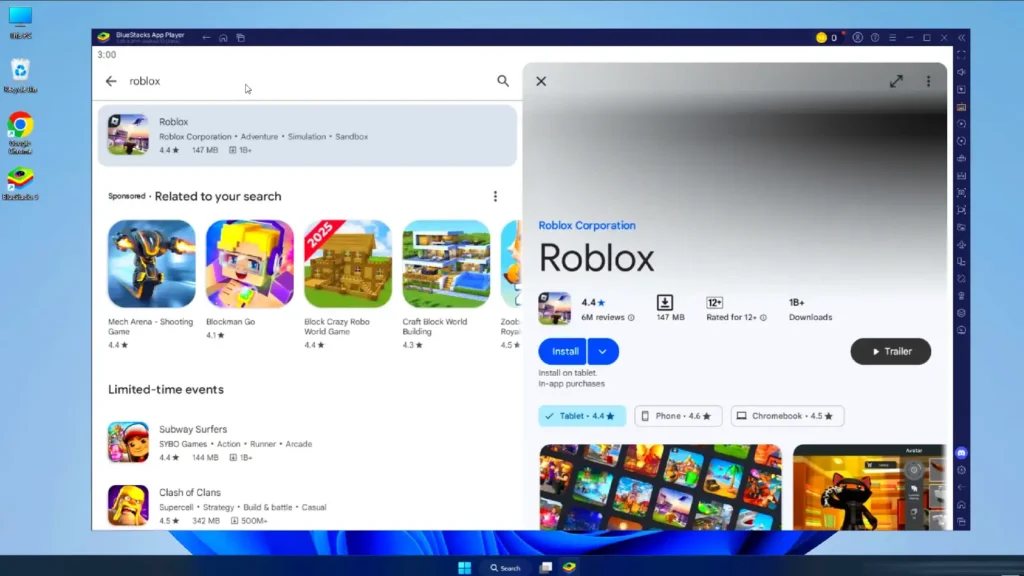
- Open Google Play Store inside BlueStacks
- Search Roblox → Install
Part C: XAPK Fallback (Last Resort)
If Play Store isn’t working:
- On your phone, go to APKPure.com or APKMirror.com — download the Roblox XAPK
- Transfer to PC via USB or Google Drive
- Drag and drop the XAPK onto the BlueStacks window — installs automatically
⚠️ Safety rule: Only use APKPure.com or APKMirror.com. Never download Roblox from Facebook groups, Telegram channels, or YouTube comment links — common malware sources targeting Filipino gamers. No legitimate download asks for your Roblox password.
Roblox Download Tips for Slow Internet in the Philippines
Download at night (11pm–5am)
Globe and Smart congestion is lowest off-peak. The same download that takes 3 hours during the day often finishes in 30 minutes after midnight.
Use a wired LAN cable
Usually under ₱200 at any computer accessories shop. Far more stable than Wi-Fi for a large download.
Use the Microsoft Store method
Auto-resumes after drops — no starting over.
Use Free Download Manager
Download from freedownloadmanager.org — splits the installer into segments that resume independently. Free and widely used by Filipino players.
Use mobile data as backup
Check the current Globe or Smart mobile data day-pass promo via the GlobeOne or GigaLife app. A data day-pass can be faster than home DSL for a single large download.
Low-Spec Laptop Settings After Installing
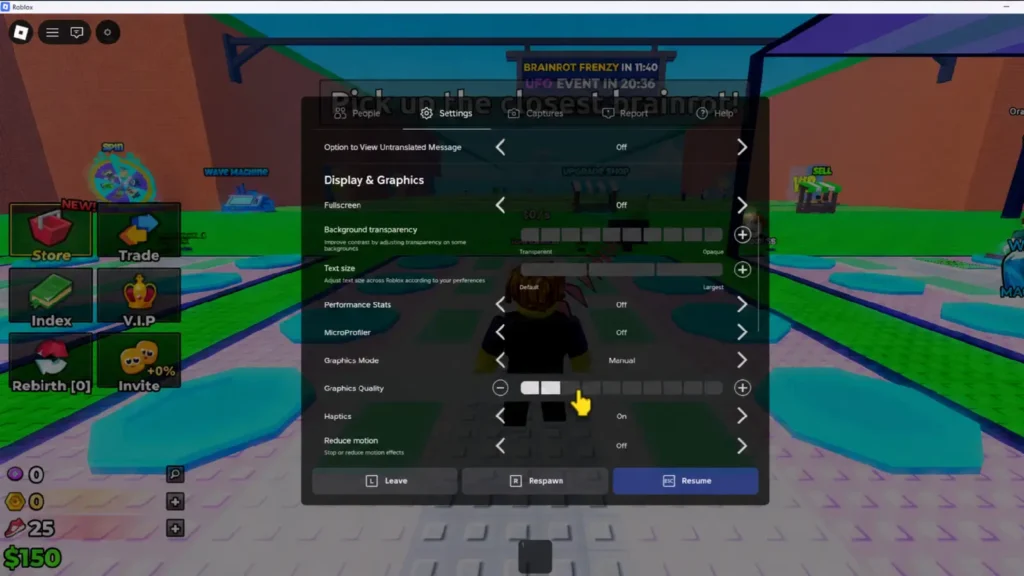
Lower Roblox graphics:
In-game → Escape → Settings → Graphics Mode: Manual → drag Graphics Quality to Level 1 or 2
Close Chrome before playing:
Chrome typically uses 500 MB to 1 GB or more of RAM depending on open tabs. On a 2 GB RAM laptop, this leaves almost nothing for Roblox.
Disable startup programs:
Ctrl+Shift+Esc → Startup tab → disable OneDrive, Teams, Spotify, and other non-essentials.
Common Mistakes to Avoid
Mistake 1: Downloading Roblox from Facebook or Telegram
Official sources only: roblox.com, Microsoft Store, Google Play Store (via BlueStacks). Downloads shared in Facebook groups or Telegram are frequently modified APKs used to steal account credentials in the Philippines. If you’re asked to enter your password on a download site: close the page.
Mistake 2: Not running the installer as Administrator
If RobloxPlayerLauncher.exe silently fails or disappears, right-click it and select Run as Administrator. Windows security settings block many installers from running without elevated permissions.
Mistake 3: Starting a large download on capped mobile data
If you’re on a limited mobile data plan, don’t start the 1–4 GB Roblox download without checking your remaining data first. A partial download that hits your data cap won’t resume cleanly without a download manager.
Problems and Fixes
| Problem | Fix |
|---|---|
| Installer file disappears | Ctrl+J in Chrome → Resume → save to Desktop first |
| Windows blocks installer | Right-click → Run as Administrator |
| Microsoft Store “already owned” bug | Three dots → My Library → find Roblox → Install |
| Game crashes on launch | Lower graphics to Level 1; run dxdiag (Win+R → type dxdiag) |
| Antivirus blocks Roblox | Add Roblox folder to antivirus exceptions during install |
| Stuck at 99% | Cancel → re-download via Microsoft Store or Free Download Manager |
| BlueStacks slow | BlueStacks Settings → Performance → CPU: 2 cores, RAM: 2 GB, enable VT-x if available |
Summary
Download from roblox.com (Method 1) for a stable connection. Use the Microsoft Store (Method 2) for slow or unstable internet. Use BlueStacks + XAPK (Method 3) as a last resort for very old hardware. Set graphics to Level 1–2 after installing. Close Chrome before you play.
